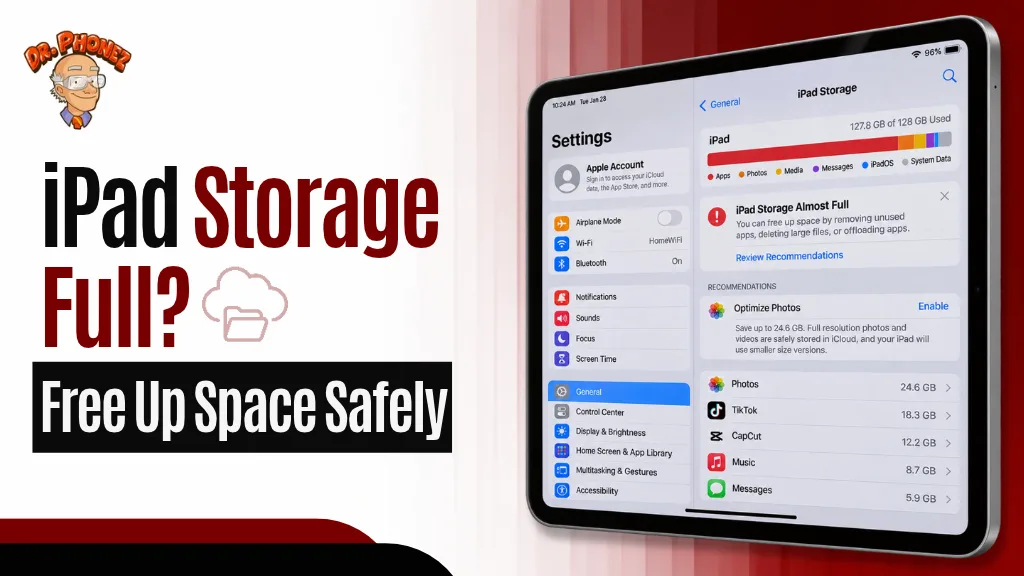
iPhone storage stays full after deleting because system data, cached files, and recently deleted items still occupy space on your device. Restarting your phone, clearing app caches, and offloading unused apps recovers storage without permanently removing your content.
You deleted apps. You removed photos. You cleared out old videos. Yet your iPhone is still showing that dreaded “Storage Almost Full” message. If this sounds familiar, you’re not dealing with a glitch. Your iPhone is doing exactly what it was designed to do, and understanding why gives you the tools to fix it permanently.
Why Is My iPhone Storage Full After Deleting Everything?
Deleting visible content like photos and apps only addresses part of your storage problem. Your iPhone holds several categories of data that don’t disappear when you hit delete.
System Data: iOS stores temporary files, logs, and cached content to help apps run faster. Over time this system data grows significantly, sometimes reaching 10-20GB on heavily used devices. These files don’t appear in your photo library or app list, making them invisible to most users.
Recently Deleted Folder: Photos and videos you delete don’t immediately leave your device. They sit in the Recently Deleted album for 30 days before permanent removal. A 4K video library takes up just as much space in Recently Deleted as it did in your main library.
App Data and Cache: Deleting an app removes the app itself but sometimes leaves behind saved data, documents, and cached files. Streaming apps like Netflix and Spotify store downloaded content that persists even after clearing your library.
Messages and Attachments: Years of text conversations accumulate photos, videos, voice messages, and documents that consume gigabytes without appearing in your Photos app.
iOS Update Files: Sometimes incomplete or cached iOS update files remain on your device long after an update completes.
How to Free Up iPhone Storage Without Deleting Anything
These methods recover storage by removing hidden, unnecessary data rather than content you actually want to keep.
Empty Recently Deleted Immediately
Open the Photos app, tap Albums, scroll down to Recently Deleted, and tap Select then Delete All. This single action frequently recovers several gigabytes instantly, particularly if you deleted a large batch of photos or videos recently.
Restart Your iPhone
A full restart prompts iOS to clear temporary files and recalculate storage usage. Many users see 1-3GB appear after a simple restart because iOS purges temporary cache files during the shutdown and boot process. Press and hold the side button with a volume button, slide to power off, wait 30 seconds, then power back on.
Offload Unused Apps Instead of Deleting
Offloading is the middle ground between keeping and deleting. When you offload an app, iOS removes the application itself but keeps all your data and documents. If you reinstall the app later, everything picks up exactly where you left off.
Go to Settings, then General, then iPhone Storage. Scroll through your app list and tap any app you use infrequently. Select Offload App. You can also enable automatic offloading by going to Settings, then App Store, and toggling Offload Unused Apps.
Clear Safari Cache and Website Data
Safari stores website data, images, and history that accumulates over months of browsing. Go to Settings, scroll to Safari, tap Clear History and Website Data. This removes cached web content without affecting your saved passwords or bookmarks if iCloud Keychain is enabled.
Review and Reduce Message History
Your Messages app likely holds years of photos, videos, and attachments sent in conversations. Go to Settings, then Messages, then Keep Messages. Change this from Forever to One Year or 30 Days. iOS will ask to delete older messages, recovering substantial space from long-running conversations.
To clear attachments from specific conversations without deleting the messages themselves, open a conversation, tap the contact name at the top, then tap Info. Scroll down to see all photos and attachments. Select and delete the large files you no longer need.
Manage Streaming App Downloads
Music, podcast, and streaming apps store downloaded content locally. Open Spotify, Apple Music, or any podcast app and review your downloaded content. Remove downloads you’ve already listened to or watched. These files often consume 2-8GB on devices used regularly for offline listening.
Enable iCloud Photos Optimization
If you use iCloud Photos, enable storage optimization to keep smaller device-sized versions of your photos locally while storing full-resolution originals in iCloud. Go to Settings, tap your name, then iCloud, then Photos, and select Optimize iPhone Storage.
This alone can recover 20-50GB on devices with large photo libraries, replacing full-resolution files with compressed versions that still look sharp on your screen.
Understanding System Data and How to Reduce It
System data is the most misunderstood storage category on iPhone. To see exactly how much it consumes, go to Settings, then General, then iPhone Storage, and scroll to the bottom of the storage bar. System data appears as a gray section.
When system data exceeds 10GB, these approaches help reduce it:
Stream instead of download: Apps that download content locally build cache faster than streaming apps. Where possible, stream music and podcasts rather than downloading for offline use.
Clear individual app caches: Some apps like Instagram, YouTube, and TikTok build large caches. Go to Settings, then iPhone Storage, select one of these apps, and tap Offload App. Reinstall it afterward and the cache starts fresh without losing your account data.
Factory reset as a last resort: If system data remains bloated after trying everything else, backing up your iPhone and performing a clean restore removes all accumulated system data completely. This is the nuclear option but guarantees a fresh start.
What to Check When iPhone Storage Shows Full but Nothing Is There
Sometimes storage reads as full even after you’ve addressed the obvious categories. A few specific checks help identify hidden storage consumers.
Voice Memos accumulates recordings over years of use. Open the Voice Memos app and delete any recordings you no longer need.
The Files app may contain downloaded documents, PDFs, and zip files you’ve forgotten about. Open Files, tap Browse, then check both On My iPhone and iCloud Drive for large files.
Photo bursts consume storage silently. When you hold the shutter button, your iPhone captures dozens of frames. Open Photos, tap Albums, then Bursts, to review and delete burst photos you no longer need, keeping only your favorite from each sequence.
When Storage Problems Point to Something Deeper
If you’ve worked through every step above and your iPhone still shows critically low storage, or if storage readings seem inaccurate and inconsistent, the issue may involve a software fault rather than actual content accumulation.
Persistent storage errors after a clean restore, storage that fills immediately after clearing, or storage readings that fluctuate without explanation can indicate deeper software issues that benefit from professional diagnosis. An expert can determine whether you’re dealing with a software corruption, iOS bug, or hardware fault affecting storage performance. If you’re experiencing these symptoms alongside other iPhone problems, professional iPhone repair and diagnostics can identify the root cause quickly.
Take Back Control of Your iPhone Storage
iPhone storage filling up after you’ve deleted content is a solvable problem once you understand where the space actually went. System data, cached content, recently deleted files, and streaming downloads collectively account for most surprise storage situations.
Work through these steps in order: empty Recently Deleted first, restart your device, then tackle app caches and message history. Most users recover significant storage without permanently losing a single photo, contact, or important file.
At Dr. Phonez, our technicians help customers resolve persistent iPhone storage and performance issues that software fixes alone can’t address.
Still fighting a storage problem that won’t budge? Walk into any Dr. Phonez location in San antonio for a free same-day diagnostic. No appointment needed, and our team will identify exactly what’s consuming your storage and get your iPhone running smoothly again.