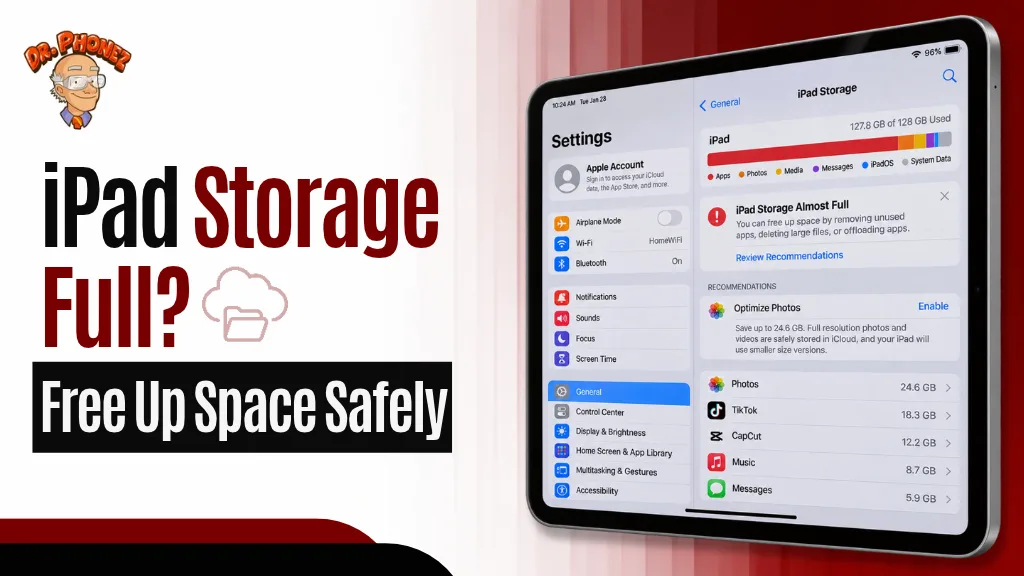
When iPad storage gets low, you may run into problems such as failed app updates, download issues, or difficulty syncing new content. The amount of space you can recover depends on what is using storage on your device. Checking your storage breakdown first can help you identify what can be safely removed or moved.
Knowing what actually takes up the space makes it easier to clear the right things first.
Check What Is Taking Up Space First
System Data is a storage category used for items such as system-related data, logs, caches, fonts, dictionaries, Siri resources, Spotlight index data, and other files that do not fit into the main storage categories. The amount can change as iPadOS manages temporary and cached files.
There is no universal “Clear System Data” button on the iPad. Start with the storage recommendations under Settings > General > iPad Storage, remove content you no longer need, and let iPad OS manage cached and temporary files. Apple notes that the system can remove cached and temporary files when space is needed.
Clear App Caches and Offload Unused Apps
Apps can store cached and temporary data, but iPadOS does not provide one universal option to clear the cache for every app. Whether you can clear cached data depends on the individual app and the options it provides. Some apps provide separate options for clearing cached data and removing downloaded content. In Spotify on iPad, open your profile picture, go to Settings and privacy > Data-saving and offline > Storage, then tap Clear next to Clear cache to clear cached data. Removing downloaded music or podcasts is a separate action and frees storage used by offline downloads.
A cleaner option is Offloading. Go to Settings > General > iPad Storage, tap any app, and choose Offload App. Offloading removes the app itself while keeping its documents and data on the iPad. Reinstalling the app restores access to that data. Deleting an app is different: it removes the app and its related data. Apple does this automatically for apps you haven’t opened in a long time if you enable it.
To turn on automatic offloading: Settings > Apps > App Store > Offload Unused Apps.
Delete Downloaded Content From Streaming Apps
Music, podcasts, videos, and audiobooks that have been downloaded for offline use take up large blocks of storage. Many users forget these files are sitting on the device.
Check these apps directly:
- Apple Music or Spotify: Remove downloaded albums and playlists you no longer need
- Apple Podcasts: Delete episodes you have already listened to
- Apple TV or Netflix: Remove any downloaded shows or films
- Audible or Apple Books: Delete audiobooks or ebooks you have finished
Removing downloaded content frees the local storage used by those files. Whether you can download the content again depends on the service, your account or subscription, and whether the content is still available under its licensing terms.
Manage Photos and Videos Without Deleting Them
Photos and videos can use a substantial amount of storage, especially when your library contains many high-resolution images and videos. How much space they use depends on what is stored on your particular iPad.
iCloud Photos keeps your photos and videos synced across your Apple devices. When Optimize iPad Storage is enabled, full-resolution originals are stored in iCloud while space-saving versions can remain on the iPad. Keep in mind that iCloud Photos is a sync service, not a separate backup: if you delete a photo from your iPad while iCloud Photos is enabled, that deletion also syncs to your other devices using the same Apple Account
If you prefer not to use iCloud, transfer photos to a Mac or PC using a USB cable and the Photos app or Windows Photos. After transferring the files to a Mac, PC, or iCloud Drive, open the destination and confirm that the files were copied or uploaded successfully before deleting the originals from the iPad.
Also check the Recently Deleted album in the Photos app. Deleted photos and videos remain there for up to 30 days before they are permanently removed. If you choose Delete All, those items are permanently deleted and can no longer be recovered through Recently Deleted.
Review Messages and Mail Attachments
iMessage and email attachments add up faster than most people expect. Voice messages, photos sent in group chats, and email files all sit on the device.
Go to Settings > General > iPad Storage and tap Messages to review the storage used by messages and attachments. You can delete conversations or attachments you no longer need, but remember that deleting them removes that content rather than simply clearing temporary storage.
For Mail, review large messages and attachments you no longer need and delete them if you are sure you no longer need the content. Emptying the Trash can permanently remove deleted emails.
Remove Old App Data and Documents
Some productivity apps, like GoodNotes, Notability, or file manager apps, accumulate large local document libraries. If you use an app like this, go into the app itself and review what can be exported to cloud storage or deleted.
For Files app storage, tap Browse > On My iPad to see locally stored documents. Move the files to iCloud Drive or another cloud service and confirm that the files are available there before deleting the local copies from the iPad.
What If the iPad Is Still Slow After Freeing Up Space?
Freeing up storage helps with download errors, failed app updates, and sync issues. If the iPad is still sluggish after clearing space, the problem may not be storage at all.
Older iPad models can experience slowdowns from battery degradation, software bugs, or hardware issues that have nothing to do with available storage. A tablet repair technician can run diagnostics to identify whether the problem is battery-related or something else.
If your iPad has been dropped, is running hot, or is having trouble charging alongside the slowdown, those are signs worth getting checked in person. The team at Dr. Phonez handles iPad diagnostics and can tell you whether a repair makes sense before you spend money on a new device.
When to Think About a Battery or Hardware Repair
A full storage warning and performance problems sometimes overlap with battery issues. Battery condition primarily affects battery life and how long the iPad can run between charges. General performance problems should be considered separately from battery condition and may have other causes. If the iPad continues to perform poorly after you free up storage, the cause may require further diagnosis.
Check your battery health at Settings > Battery > Battery Health, if your iPad model supports this feature. Apple currently provides Battery Health and History on supported models including iPad Pro (M4 and M5), iPad Air (M2, M3 and M4), iPad mini (A17 Pro), and iPad (A16). Battery replacement depends on the battery’s condition and the symptoms you are experiencing, rather than a general 80% threshold.
If your iPad is showing both storage and performance problems, it may be worth visiting a local repair shop for a quick diagnostic before writing the device off. Many iPad repairs, including battery replacements and charging port fixes, are completed the same day.
If you are unsure whether a repair makes financial sense, the iPad repair services page covers what can typically be fixed and at what point replacement becomes the better call.
Frequently Asked Questions
Will offloading an app delete my data? No. Offloading removes the app while retaining its documents and data on the iPad. When you reinstall the app, the app can access the retained data, although the way individual apps store and restore data can vary.
Does iCloud Photos count toward iPad storage? iCloud Photos uses iCloud storage, but photos and videos can still use some local iPad storage. With Optimize iPad Storage enabled, full-resolution originals are stored in iCloud while space-saving versions can remain on the iPad.
How much free space should an iPad have? There is no single percentage that applies to every iPad. If storage is getting low, check Settings > General > iPad Storage and follow the available recommendations or remove content you no longer need.
Can a repair shop help with iPad storage problems? A repair technician can help diagnose an iPad that continues to have problems after normal storage-management steps. Storage warnings do not automatically mean that the device has a hardware failure, so the cause should be identified through proper diagnosis before assuming a storage component is damaged.
Why does my iPad say storage is full when I deleted things? Deleted photos stay in the Recently Deleted album for up to 30 days. Deleting an app normally removes the app and its associated data, while files stored separately in locations such as the Files app or cloud services may remain. Check Settings > General > iPad Storage and review the storage categories to see what is still using space.
A Quick Recap
Many iPad storage problems can be improved by reviewing what is using space and removing, moving, or offloading content you no longer need. The amount of space you can recover depends on what is stored on the device. The steps that recover the most space, in order:
- Check Settings > General > iPad Storage to find what is using the most space
- If you use iCloud Photos, remember that it is a syncing service rather than a separate backup. If you have confirmed that it fits your needs, you can enable Optimize iPad Storage to reduce the amount of local storage used by photos and videos.
- Delete downloaded content from streaming apps
- Offload apps you rarely use
- Clear recently deleted photos
- Review Messages and Mail attachments
If the iPad is still slow after all of this, the issue may be battery or hardware related. Local repair shops can diagnose and fix those problems the same day in many cases.
iPad Still Not Working Right After Freeing Up Space?
If your iPad is sluggish, overheating, or having charging or battery problems alongside the storage issue, the fix may not be in Settings. Dr. Phonez provides iPad diagnostics and repairs in San Antonio, with same-day service available for most common repairs. Locations include Stone Oak and San Pedro Ave. Walk-in is available, so no appointment is required.