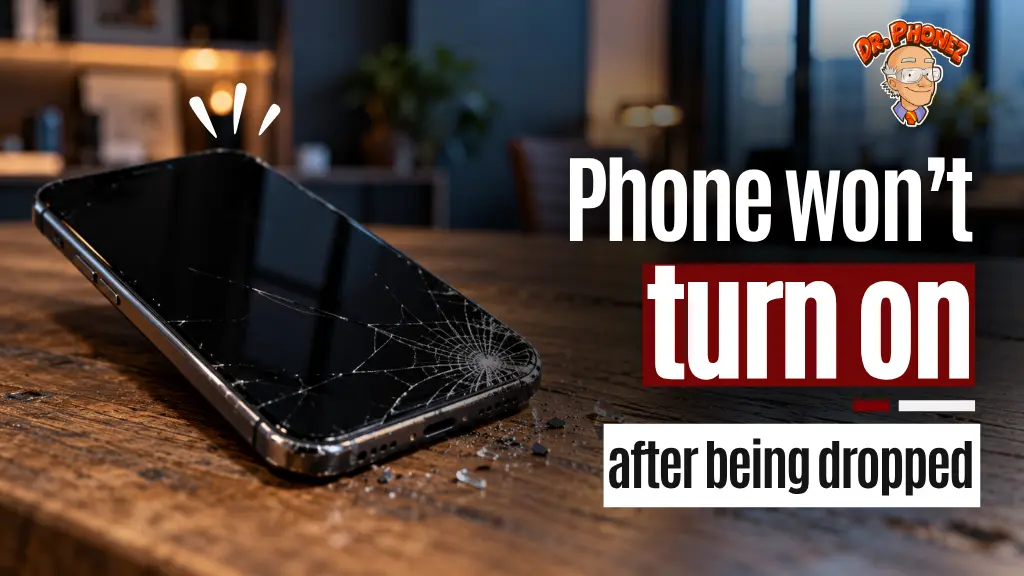
Your Samsung Galaxy is not responding. The screen is black, and pressing the power button does nothing.
Before assuming the worst, the fix depends entirely on which type of power failure you are dealing with. Four different situations produce the same black screen, and each one has a different cause and a different fix.
Identify Your Situation First
Hold the power button for ten seconds and watch carefully. Then plug in the charger and wait thirty seconds.
No response at all, no screen, no charging indicator, no vibration. The battery may be fully depleted, the charging port may be blocked, or a hardware fault is preventing power from reaching the display.
A charging indicator appears when plugged in, but the phone will not power on. The battery is receiving power, but the phone cannot complete its startup sequence.
The Samsung logo appears but the phone freezes there and never reaches the home screen. A corrupted system file or a failed software update is the most common cause.
The screen turns on, but the display is unresponsive to touch or shows lines and distorted colours. The fault is in the display assembly, not the power circuit.
No Response at All
Connect the original Samsung charger directly to a wall outlet and leave it for a full 30 minutes. After 30 minutes, hold the power button and volume down button simultaneously for ten seconds.
If there is still no response, inspect the charging port with a flashlight. Lint compacts into the USB-C port over time and prevents the cable from making proper contact. A wooden toothpick used gently along the edges of the port will dislodge it. Never use metal tools near the port.
One cause specific to San Antonio summers worth knowing: lithium-ion batteries can enter a protective shutdown state in extreme heat where the battery management system refuses to accept a charge until the device cools. If the phone was in a hot car or direct sunlight, move it indoors for 20 minutes before attempting to charge it again.
If none of these steps produce any response, the fault is hardware. The battery may have failed, the charging circuit may be damaged, or a component failure is preventing startup.
Charging Indicator Appears But Phone Will Not Boot
Perform a force restart. Hold the power button and volume down button simultaneously for a full 20 seconds. Release when the Samsung logo appears, or after 20 seconds if nothing happens. Wait 60 seconds, then attempt to power on normally.
If that does not work, try booting into safe mode. Power off the device, then hold the power button until the Samsung logo appears. As soon as the logo appears, hold the volume down button and keep holding it until the device finishes booting.
If the phone reaches the home screen in safe mode, a downloaded app is causing the startup failure. Uninstall recently added apps one at a time until the issue resolves.
If safe mode is not accessible, boot into recovery mode by holding the volume up button and power button simultaneously until the recovery screen appears. Select Wipe Cache Partition. This clears temporary system files without deleting personal data and resolves many startup failures.
Stuck on Samsung Logo
A phone that freezes on the Samsung logo has almost always encountered a corrupted system file or a failed software update.
The force restart is the first step. If the phone stays stuck on the logo, boot into recovery mode and select Wipe Cache Partition, then select Reboot System Now.
Samsung Galaxy devices updated to One UI 8 or Android 16 have been documented in Samsung Community forums as experiencing startup freeze issues in certain device batches in 2026. If the phone stopped responding immediately after a software update completed, the cache wipe in recovery mode resolves this in most cases without any data loss.
If the phone remains stuck after the cache wipe, a factory reset from recovery mode is the final software option. Select Factory Reset in the recovery menu. This erases all personal data and returns the device to factory state. Only attempt this after the cache wipe has already been tried and failed.
Screen Unresponsive After Powering On
If the phone powers on and the display shows the home screen or lock screen but touch does not respond, or the display shows lines and distorted images, the fault is in the display assembly.
A force restart is still worth attempting first. If the display issue persists after a restart, the screen, digitizer layer, or the flex cable connecting the display to the motherboard has a hardware fault that requires professional repair.
Galaxy A Series vs S Series: One Difference Worth Knowing
Many Samsung users in San Antonio use Galaxy A series devices, the A15, A25, A35, A55, and A56, which are the more budget-friendly models.
Galaxy A series phones are more susceptible to battery-related startup failures because their power management chips operate with tighter voltage tolerances. An A series phone may show no response even with five to ten percent battery remaining, whereas S series devices typically show a low battery warning before shutdown. If you have an A series Galaxy that appears completely dead, the 30-minute charge step is especially important before drawing any conclusions.
When to Stop and Get a Diagnostic
No response after 30 minutes of charging with the original Samsung charger and a clean port. The force restart, safe mode, and recovery mode cache wipe have all been tried without result. The failure followed a drop or liquid exposure. A burning smell or visible swelling of the back panel is present, indicating battery failure that needs immediate attention.
All of these point to hardware faults that a free diagnostic will identify before any repair cost is agreed.
Frequently Asked Questions
Why won’t my Samsung Galaxy turn on even after charging? The most common causes are a deeply depleted battery, a blocked charging port, or a corrupted system state. Whether a charging indicator appears when plugged in tells you which situation applies and which fix to try.
How do I force restart a Samsung Galaxy that won’t turn on? Hold the power button and volume down button simultaneously for 20 seconds. Release when the Samsung logo appears or after 20 seconds if nothing happens. This works across Galaxy S, A, Z Fold, and Z Flip models.
Why did my Samsung Galaxy stop turning on after an update? Samsung Galaxy devices updated to One UI 8 or Android 16 have experienced documented startup failures in certain batches in 2026. Boot into recovery mode by holding volume up and power simultaneously, then select Wipe Cache Partition. This resolves most post-update startup failures without erasing personal data.
Can heat cause a Samsung Galaxy to stop turning on? Yes. Lithium-ion batteries can enter a protective shutdown state in high temperatures. Move the device to a cooled indoor space for 20 minutes before attempting to charge or restart it.
When should I take my Samsung Galaxy to a repair shop? If the phone shows no response after 30 minutes of charging, the force restart and recovery mode steps have not helped, or the failure followed a drop or liquid exposure, a professional diagnostic is the right next step.
Still Not Turning On After All That?
Sometimes a phone just needs a proper look from someone who works on them every day. Walk into Dr. Phonez at any San Antonio location, and the team will run a free diagnostic, tell you exactly what is wrong, and let you decide what to do next. No appointment, no commitment.