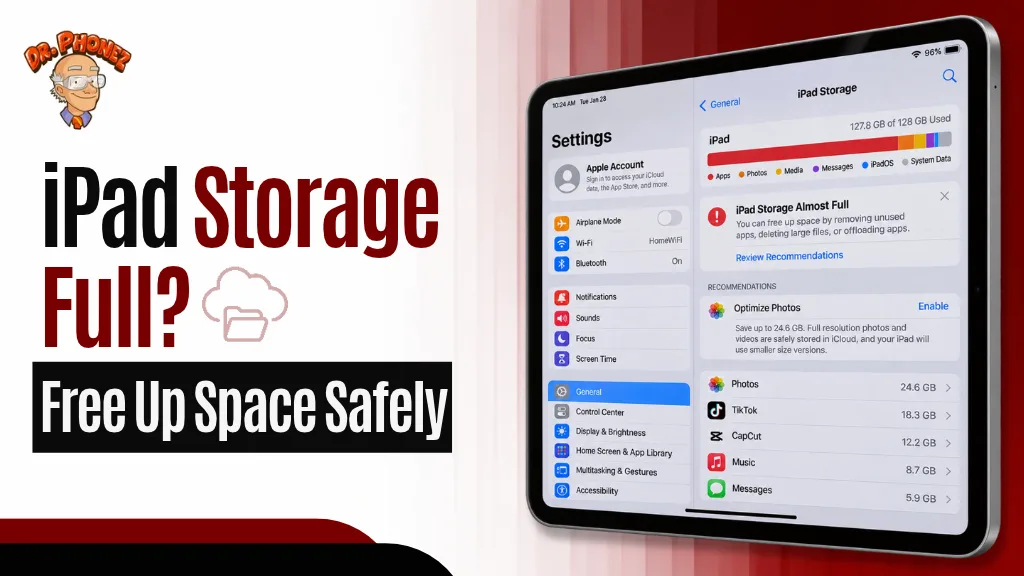
You’re paying for iCloud. You have gigabytes sitting unused in the cloud. Yet your iPhone keeps flashing that “Storage Almost Full” warning. Something doesn’t add up. The frustrating truth is that iCloud storage and iPhone storage are two completely separate systems, and buying more of one does absolutely nothing for the other. Once you understand how they actually work together, you can take the right steps to free up your device and stop seeing that notification for good.
iCloud Storage and iPhone Storage Are Not the Same Thing
This is the core of the confusion, and Apple’s own support documentation confirms it: iCloud storage is space on Apple’s remote servers, while iPhone storage is the physical space built into your device.
When you subscribe to iCloud, you’re renting space on Apple’s servers to store backups, photos, documents, and app data remotely. That data lives in the cloud, not on your phone. Your iPhone’s physical storage remains whatever it was when you bought the device, whether that’s 128GB, 256GB, 512GB, or 1TB. Purchasing more iCloud storage capacity cannot and does not expand your iPhone’s built-in storage.
Think of it this way. iCloud is a storage unit off-site. Your iPhone is your home. Renting a bigger storage unit doesn’t give your home more rooms.
Why Having iCloud Doesn’t Automatically Free Device Space
Many people assume that enabling iCloud means files automatically leave their phone. This is only partially true and only under specific conditions.
When you turn on iCloud Backup, your iPhone creates a copy of your data in the cloud. The word “copy” matters here. Your photos, messages, and app data remain on your device in full. The backup is an additional duplicate stored remotely for safety, not a transfer that removes content from your phone. iCloud Drive works similarly. Unless you actively move files there and delete them locally, your documents stay on your device.
The one exception that genuinely frees device space is iCloud Photos with Optimize Storage enabled, but this requires deliberate setup and a specific condition to activate.
How iCloud Photos Optimize Storage Actually Works
Optimize iPhone Storage is the feature that creates a real connection between iCloud and your device storage. When enabled, iOS stores full-resolution photos and videos in iCloud while keeping smaller, compressed versions on your device. According to Apple Support, this compressed library can be as little as 10-20% of the size of your full-resolution library.
To enable it, go to Settings, tap your name, select iCloud, tap Photos, then choose Optimize iPhone Storage.
Two conditions must be met for this to work. Your iCloud storage must have enough space to hold your full photo library. If your iCloud account is already full, optimization stops and new photos stop backing up. iOS also only begins replacing full-resolution photos with smaller versions when your device runs low on storage, meaning full-resolution originals may still sit locally if plenty of device space remains.
Common Reasons Your iPhone Storage Is Full Despite Having iCloud
Understanding the separate nature of both systems explains why these specific situations happen:
Your iCloud itself is full. Apple provides 5GB of free iCloud storage shared across all your Apple devices and services. If you’ve exceeded your plan’s limit, iCloud stops syncing and backing up, and your device storage continues filling up without any cloud relief. Check by going to Settings, tapping your name, then iCloud to see your current usage.
iCloud Photos is enabled but Optimize Storage is off. When you choose Download and Keep Originals instead of Optimize Storage, full-resolution files are stored both in iCloud and on your device simultaneously. You’re using both storage types at full capacity.
Apps store data locally regardless of iCloud. App data like downloaded podcasts, offline maps, cached streaming content, and game data sits on your device storage. iCloud doesn’t touch this content unless the individual app specifically supports iCloud Drive syncing.
Messages and attachments stay on device. Years of photos, videos, and voice messages shared over Messages accumulate on your device. iCloud Messages backup stores copies in the cloud but originals remain local until you manually delete them.
System data grows independently. iOS creates temporary files, logs, and cached data as part of normal operation. This system data has nothing to do with iCloud and grows regardless of your cloud storage situation.
How to Actually Free Up iPhone Storage When You Have iCloud
Now that the distinction is clear, these steps address your device storage directly.
Enable Optimize iPhone Storage in iCloud Photos settings if you haven’t already. Go to Settings, tap your name, select iCloud, tap Photos, then choose Optimize iPhone Storage. This is the most impactful change for users with large photo libraries.
Check your iCloud storage usage and free up space there if it’s full. Go to Settings, tap your name, then iCloud, then Manage Account Storage. Old device backups from previous iPhones are common space wasters that serve no current purpose.
Go to Settings, then General, then iPhone Storage to see which apps consume the most local space. Streaming apps, social media apps, and podcast players frequently store gigabytes of cached content you can clear without losing anything important.
Review your Messages settings. Go to Settings, then Messages, then Keep Messages and consider changing from Forever to One Year. This automatically removes older conversations and their attachments.
Empty the Recently Deleted album in Photos immediately. Deleted photos remain on your device for 30 days before permanent removal, consuming full space the entire time.
For a deeper look at other hidden storage consumers beyond the iCloud confusion, the steps in our guide on iPhone storage full after deleting everything cover system data, cached files, and other areas that iCloud doesn’t touch.
When Both Storage Types Run Out Simultaneously
Some users find their iPhone storage and iCloud storage both running low at the same time. This happens when a large photo library fills iCloud while apps, system data, and cached content fill the device. Managing both separately is necessary in this case. Upgrading your iCloud plan addresses cloud capacity while working through your device storage frees local space. Neither fix helps the other automatically.
If you’ve worked through every setting and your iPhone still shows critically low storage, or if your device behaves unusually alongside the storage warnings, a software issue rather than actual content accumulation could be the cause. Professional iPhone Repair can identify whether a software fault is misreporting your storage or preventing the operating system from clearing temporary files correctly.
Stop Confusing the Two and Start Fixing the Right Problem
iCloud storage is your remote backup and sync service. iPhone storage is your device’s physical capacity. Expanding one never expands the other. The fix for a full iPhone requires working on your device directly, and the most powerful tool for photo-heavy users is enabling Optimize iPhone Storage, provided your iCloud account has enough space.
Work through the steps above and most users recover significant device storage without losing a single file.
At Dr. Phonez, our technicians diagnose persistent iPhone storage and performance issues quickly, including cases where software faults interfere with normal storage management.
Still seeing “Storage Almost Full” after trying everything? Walk into any Dr. Phonez location in San Antonio for a free same-day diagnostic. No appointment needed, walk-ins always welcome.